Digital Metering
Login
To access Digital Metering, it is necessary to "Login" by entering an "Email" and a "Password" in this link.
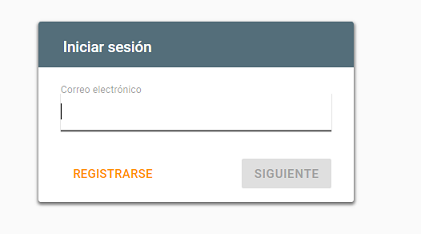
Click here to see video about How sign up in Digital Metering.
Structure of Digital Metering
Sidebar available on the left side of the screen:
- Digital Metering Menus.
- Account and permissions of the user.
- User account where you can check or edit basic account data.

Home
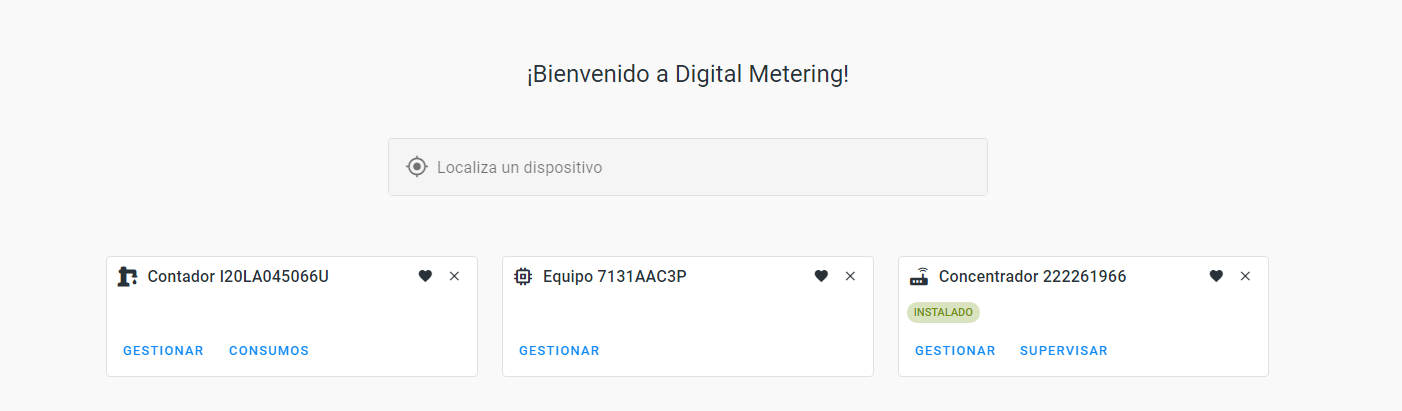
When accessing Digital Metering, the Home screen welcomes you and allows you to search by:
- Meter and access to the Management and Consumption menus.
- Device and access the Management menu.
- Transmitter and access the Management and Supervision menus.
After searching, by selecting the heart that appears on the card it will remain fixed on the screen. If you want to unfix, select the "x".
Common Features
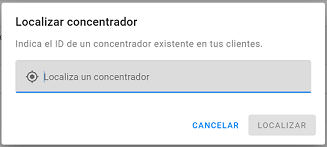
Tracker
Available at the top and right of the screens, it informs on the site and the tenant to which a transmitter, meter or device belongs. This functionality is only available for users with access to more than one tenant.

Dropdown with Tenants
Available next to the tracker. This dropdown allows to select the tenant (client) for which you want to consult data. It is available on all screens except Consumption, Alarm Analytics and Metrics because they do haver transversal searchers.
Export
Available at the top and right of the screens, allows to export the information available in the table.
Can choose between CSV or Excel format. Once the format is selected, the following message appears at the bottom of the screen "Your download is being prepared, go to the file management screen to see the status".
In order to obtain the file, go to the menu: Files, to the tab "Downloads" and select the file.

Searcher and filters

A search engine with autocomplete that suggests results based on the text entered has been incorporated. The information entered in the search engine must be mainly related to:
- Transmitter
- Meter
- Device
- Supply Point
- Other values according to the screen.
In order to narrow the search, filters have been added at the bottom of the search engine. The main ones are:
- Site
- Type (1G or 2G)
- Type of technology (VHF, BUS-VHF, iMeter or Hydrosense) or Meter type (Mechanical or Electronic, SPDE or NO SPDE).
- Condition
- Substratus
- Dates: installation or removal.
- Groups.
- Other values according to the screen.
Selecting “Reset” cancels the entered search and selecting “Clear Filters” cancels the applied filters.
Click here to see the diagram of status and substatus of an asset (transmitter, meters or device).
Edit columns
Button that allows the user to modify the columns displayed in the table. 
Complementary actions
Button available on the table and on the right side panel that allows to:
- Modify the status and substatus of the selected device.
- Send transmitter to another tenant (screen: Manage transmitters): the transmitters that are in the Solutions tenant and in storage status can be assigned to any other tenant.
- Send meters and/or devices to another tenant (Manage Devices screen): this action will be enabled when the device and/or meter are in warehouse status.
- Add comment.
- Reprocess a reading (screen: Manage Devices, equipment tab) go to explanation.
- Configure an iMeter or Hydrosense device (screen: Manage Devices, Devices tab). go to explanation.
- Enter a reading (screen: Manage Devices, tab: Counters). go to explanation.
